Liquid cooling is still the best, most aggressive cooling solution for today’s CPU and VGA components. While larger systems work the best, they also come with larger price tags and more involved installation work plus the need for regular maintenance. That’s why all-in-one liquid cooling systems are so popular these days. Most importantly, the latest coolers have been doing a surprisingly good job.
Today we’re going to be continuing to look at these all-in-one coolers with the arrival of the big brother of the previously reviewed Corsair H50: The Hydro Series H70 High Performance CPU Cooler.
The Hydro Series H70 looks very similar to it’s little brother, the H50. The H70’s two biggest upgrades are the new 55mm thick 120mm radiator and more efficient, low-profile pump and copper cold plate unit which provide for greater heat dissipation. Improvements to the plate help carry away more heat to the double thick radiator. Copper still remains the number one material for transferring heat the quickest. It’s why we find them on nearly every high quality CPU and VGA cooler on the market.
That double thick radiator is cooled by two 120mm fans rated to about 50-61 CFM (cubic fee of air per minute) emitting roughly 26-31 dBA of fan noise each. The dual 120mm cooling fans cool the radiator in a “push-pull” configuration. This is the method for making sure the entire radiator gets hit with cool air at all times.
Like all good CPU coolers on the market, the H70 is compatible with AMD’s AM2 and AM3 sockets and of course, Intel’s LGA775, LGA1156, and LGA1366 sockets.
Pricing of the CORSAIR Hydro H70 cooler is around $109.99 US as of the writing of this review. However lower prices may be found in our shopping price engine.
What’s In The Box?
Inside the box you’ll get two matched fans, the pre-plumbed radiator and heat exchanger as well as the mounting hardware that is for the previously mentioned CPU sockets. Hardware was black anodized and matched the other components well giving it a nice finished look. Of course, a manual is part of the deal and it is well presented with diagrams to help you with your installation from A-Z.
For those of you that want to see a full unboxing, we should have that video posted to our YouTube Channel in the next few days so stay tuned.
Test System
We wanted to give you a full spread comparison of the H70’s performance. So, we’ve included the CoolIT Vantage A.L.C. and Noctua NH-D14 which are both extremely capable CPU coolers. The DH-14 is arguably the pinnacle of available air coolers on the market both in size and price. The idea is to cover all the best performance possibilities.
Processor: Intel Core i7-870 Lynnfield (LGA1156)
Motherboard: ASUS P7H55M-EVO
Memory: Corsair Dominator 4GB 1600MHz DDR3 Dual Channel
Graphics: ZOTAC NVidia Geforce GTX 280 1GB AMP
Storage: Kingston 128GB SSDNow V+
Power Supply: Antec CP-850 Watt
Computer enclosure: NZXT Phantom Crafted Series
Test CPU Cooler 1: Corsair Hydro Series H70 (liquid)
Test CPU Cooler 2: CoolIT Systems Vantage A.L.C. (liquid)
Test CPU Cooler 3: Noctua NH-D14 (air cooled)
This is the same system used to test the Vantage A.L.C. a few months back with the addition of the NZXT Phantom chassis. Don’t worry as we’ve retested all of the coolers listed today to make sure that our change of case does not skew the results you see today. Our operating system of choice is of course, Windows 7 64 bit Ultimate Edition.
The best cases to pair with the H70 are those that have extra room around the rear cooling fan(s) like the NZXT Phantom. This includes cases with dual 120mm fans in the back. I’ve found cases with single fan ports located about 1.5 inch or more from the top of the chassis ideal. If your fan is mounted near the top, you’ll want to make sure you don’t have any rivets or chassis frame work stick out. Otherwise, simply remove your existing fan and mount the H70 in the same spot.
The directions are easy enough to follow by default. If you have to remove your motherboard, then mount the heat exchanger first orienting it so the logo will be horizontal, then mount the radiator. Folks with motherboard tray CPU cut-outs can save themselves some hassle by mounting the radiator to the chassis first before mounting the heat exchanger. It’ll take about 30 minutes or less based on your skill level to do it right.
As for the default intake configuration of the H70′s fans, this is the best set up unless your enclosure has poor air flow. A computer case should have equal intake and exhaust fans for the best chance of optimal air flow. If you have 3 intake fans and 1 exhaust fan, you’re most likely packing stagnant warm air in your case especially if you have a hot running video card. If you have heat issues, you should add at least one more exhaust fan to offset.
Sunday, December 26, 2010
Saturday, December 25, 2010
What Parts Do I Need to Build a Computer ????
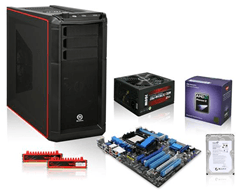
Custom built computers can be configured with many different parts and options, and it’s very important that you purchase parts that are compatible with each other. This article specifies how to buy parts for your PC build, and provides some other helpful advice.
In order to build a basic PC computer, you will most likely need to purchase the following parts:
1. Motherboard
2. CPU Processor
3. RAM Memory
4. Graphics (Video) Card
5. CD/DVD/Blu-ray Drive
6. Hard Drive
7. Case
8. Power Supply
9. Monitor (optional)
10.Keyboard and Mouse (optional)
*Monitor and Keyboard and Mouse are optional because you may already have a monitor/keyboard/mouse that can be used with your computer build.*
Now that you have a parts list of everything required to build a computer, you can start choosing each specific part. Remember, everything needs to be compatible, so it’s often wise to pick out parts for your build in a certain order.
Although not everyone does it like this, choosing your CPU first is the best way to assure that you are buying correct parts. For the most part, your CPU and motherboard will be specific to a certain vendor, meaning Intel or AMD. Start there.
CPU Processor
The first part that you need to purchase, when building your own computer, is the CPU processor. There are actually several companies that manufacture computer processors, but Intel and AMD are the most common.
Thus, you will first need to decide if you want to go with an Intel or AMD CPU. Both companies make quality processors, and both companies have their strengths and weaknesses.
- Intel is a leading CPU processor manufacturer that always seems to be on the cutting edge of technology. They are consistently adding new features and tech to their CPU processors, and constantly setting trends and raising the bar in processor evolution. Intel’s current and most popular CPU lineup consists of the Core i3, Core i5, and Core i7 range.
- AMD is a leading CPU processor manufacturer and is widely known as being Intel’s main competitor. For the most part, AMD processors stay well up to date and current, meaning that they offer good competition to Intel in terms of selection and technology.
Many PC hardware gurus and tech experts have given Intel the edge in CPU innovation and speed. However, AMD does offer one very attractive, distinct advantage…price.
Not only are AMD processors cheaper than their Intel counterparts, but AMD motherboards as well. AMD’s current and most popular CPU lineup consists of the Athlon and Phenom series II processors.
Often times, Intel processors offer top notch performance and the latest technology. However, their processors and motherboards are noticeably more expensive than AMD counterparts.
Often times, AMD processors offer good performance at a much more affordable price. Choosing AMD can save you money on buying a CPU and motherboard. However, you may be losing a bit of speed and technology.
Both manufacturers have received countless positive reviews for their products, which you can read more about at sites like Newegg and Tiger Direct.
When choosing a CPU for your computer build, you may want to consider a couple of factors. Here are some quick tips:
In order to build a basic PC computer, you will most likely need to purchase the following parts:
1. Motherboard
2. CPU Processor
3. RAM Memory
4. Graphics (Video) Card
5. CD/DVD/Blu-ray Drive
6. Hard Drive
7. Case
8. Power Supply
9. Monitor (optional)
10.Keyboard and Mouse (optional)
*Monitor and Keyboard and Mouse are optional because you may already have a monitor/keyboard/mouse that can be used with your computer build.*
Now that you have a parts list of everything required to build a computer, you can start choosing each specific part. Remember, everything needs to be compatible, so it’s often wise to pick out parts for your build in a certain order.
Although not everyone does it like this, choosing your CPU first is the best way to assure that you are buying correct parts. For the most part, your CPU and motherboard will be specific to a certain vendor, meaning Intel or AMD. Start there.
CPU Processor
The first part that you need to purchase, when building your own computer, is the CPU processor. There are actually several companies that manufacture computer processors, but Intel and AMD are the most common.
Thus, you will first need to decide if you want to go with an Intel or AMD CPU. Both companies make quality processors, and both companies have their strengths and weaknesses.
- Intel is a leading CPU processor manufacturer that always seems to be on the cutting edge of technology. They are consistently adding new features and tech to their CPU processors, and constantly setting trends and raising the bar in processor evolution. Intel’s current and most popular CPU lineup consists of the Core i3, Core i5, and Core i7 range.
- AMD is a leading CPU processor manufacturer and is widely known as being Intel’s main competitor. For the most part, AMD processors stay well up to date and current, meaning that they offer good competition to Intel in terms of selection and technology.
Many PC hardware gurus and tech experts have given Intel the edge in CPU innovation and speed. However, AMD does offer one very attractive, distinct advantage…price.
Not only are AMD processors cheaper than their Intel counterparts, but AMD motherboards as well. AMD’s current and most popular CPU lineup consists of the Athlon and Phenom series II processors.
Often times, Intel processors offer top notch performance and the latest technology. However, their processors and motherboards are noticeably more expensive than AMD counterparts.
Often times, AMD processors offer good performance at a much more affordable price. Choosing AMD can save you money on buying a CPU and motherboard. However, you may be losing a bit of speed and technology.
Both manufacturers have received countless positive reviews for their products, which you can read more about at sites like Newegg and Tiger Direct.
When choosing a CPU for your computer build, you may want to consider a couple of factors. Here are some quick tips:
- More cores is more capable. Meaning, a Dual Core CPU is better than a Single Core CPU, and a Quad Core CPU is better than a Dual Core CPU… mainly when multi tasking and running multiple programs at once.
- Consider Hyper Threading technology (Intel) or Hyper Transport technology (AMD). These two features allow a CPU to run more processes at once. For example, a Dual Core CPU can run two processes at once, one per core. However, a Dual Core Hyper Threading CPU can run four processes at once, two per core.
- Clock speed, for example 2.4GHz, refers to the frequency and speed at which a CPU processor operates. Clock speed used to be the primary way of determining the speed of a CPU, but new technology such as multiple cores and Hyper Threading/Hyper Transport now reduce the importance of clock speed. You won’t be able to tell much of a different between a CPU that is 2.2GHz Single Core and a CPU that is 2.4GHz Single Core. However, you may be able to notice a difference between a CPU that is 2.2GHz Single Core and a CPU that is 3.06GHz Single Core. If you have ever been curious as to what over clocking is, it’s simply raising the clock speed.
- 64-bit support in a CPU simply means that the CPU can support a 64-bit operating system. Really meaning, 64-bit can support more RAM memory. The alternative, 32-bit, is more limited in RAM memory support, usually set at max 4GB.
- nm (nanometer) technology, often times referred to as 45nm or 32nm, mainly deals with how much energy and power a CPU processor uses.
- Cache, (L2, L3) refers to the amount of temporary storage a CPU has. For example, a CPU that has 6MB of Cache will have the capability to store 6MB of data for instant, quick usage.
Advantages & Disadvantages Build Your Own PC
Advantages of Building Your Own PC
- Building your own computer has several benefits. Mainly, it allows you to learn how computers work from a hardware perspective. Upon successfully building your own PC, have no doubt that you will be able to fix and repair any PC hardware issues in the future.
- Building your own computer involves working with each individual hardware component individually. Things like upgrading RAM memory, hard drives, and even motherboards will become clear, and you will be able to make fixes, repairs, and upgrades yourself, without having to pay someone to work on your computer.
- Building your own PC requires some software work, as you will obviously have to install an operating system (usually Windows or Linux), and even work with the BIOS. Learning how to use your computer’s BIOS can teach you a lot about how your PC’s hardware works with your PC’s software.
- Doing a PC build also lets you choose each part individually. Meaning, you truly do get the computer that you want. Although companies like Dell and HP allow you to customize PCs to a certain extent, it’s nowhere near the customization experience of building your own PC. Not only that, but building your own PC can be cheaper than buying a PC, spec for spec.
- The pros greatly outweigh the cons when building a computer. However, there are still some things that are not so fun about building PCs.
- Mostly, building a computer is a time consuming process. Much more time consuming then going to your local Best Buy and purchasing a PC. It can also be a stressful process, but not as much if you are using a good tutorial.
- There is a chance that you may get a part or two that is defective, a lemon. Thus, you may have to go through the dreaded steps of returning a defective part, which depending on where you buy, can be simple or time consuming.
- Because there are so many different possible combinations of parts that can be used, and different part manufacturers, building a PC isn’t always a smooth process. Sometimes there may be some troubleshooting involved, and certain components may need to be tweaked in order to work properly with the rest of the setup.
- Everything is not guaranteed to work upon build. You may need to perform some additional steps before your PC works properly and is ready to use.
- Building your own computer can be stressful, but it’s definitely worth it if you have an interest in technology, mechanics, or just computers. Building your first PC is much more advantageous than it is painful.
Subscribe to:
Comments (Atom)